Give view-only access to document types
CUSTADMIN access only
This guide describes how to allow read-only access to a particular document type in PS Accounting. This allows users to view the transactions in the accounts but not post any new documents of that type.
- Log into IRIS Financials as a System Administrator then select Masters > Document Types from menu bar.
- The Document Types Maintenance dialog is displayed. Each document type has a code which usually begins with the first two letters of the location code, with the second two letters relating to the document type. It is important to maintain this naming convention as this affects how the document input forms work.
- From the User Defined Input Documents section, select click the Edit Selection button.
- From the User Defined Input dialog, in addition to any document input forms already selected, make sure that the ZZZ_NoAccess input form is highlighted, then click the OK button.
- Click the Close button on the Document Types Maintenance dialog.
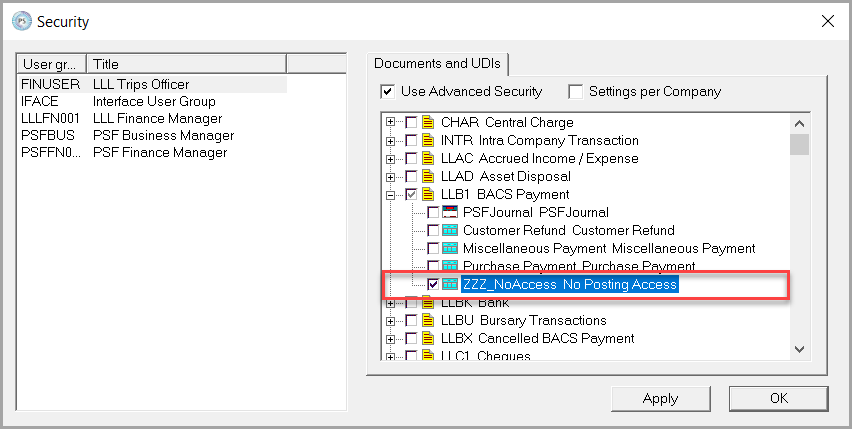
- From PS Accounting, select Admin > Security from the menu bar.
- Select the required user group in the left-hand panel.
- The yellow icon represents a document type whilst the cyan/turquoise icon represents a document input form. Expand the required document type, then deselect all the document input forms but ensure that the ZZ_NoAccess document input is selected.
-
Click the Apply button to save your settings then click the OK button. This ensures that if a user attempts to input a new document of this type, they will not be able to access any of the document input forms and will receive a No Posting Access message.
You may want to give users read only access to IRIS Financials Purchasing documents. See Provide access to document statuses for more information.