Post prepayments in MyPortal
There is now a feature within MyPortal to allow invoices to be pre-paid. This functionality requires an initial database wide set up (by the system administrator/CUSTADMIN user).
Set-Up
-
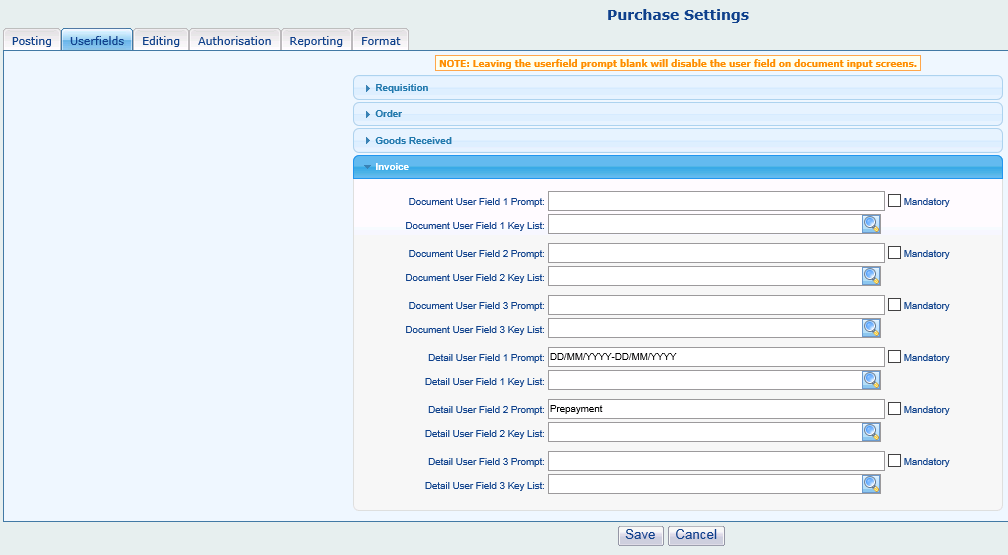
Once logged into MyPortal as PSFADMIN/CUSTADMIN, browse to Settings > Portal Set up > Purchase settings. Select the Userfields and expand the Invoice section.
-
In the Detail User Field 1 Prompt enter: DD/MM/YYYY-DD/MM/YYYY
-
In the Detail User Field 2 Prompt enter: Prepayment
-
Once Save is selected a pre-payment range can be entered within the purchase order invoice.
Posting
Once the section above has been completed on the database, the prepayment range can be added to individual lines. The expenditure line will need adding to the invoice as normal but once it has been added, select the binoculars to the left hand side of the line.

The box below appears and the date range can be entered (in the format DD/MM/YYYY-DD/MM/YYYY) and the word Prepayment needs to be added into the box with the same title.
Once Save is selected, the invoice can be posted. This prompts the Prepayment event rule to run and the Prepayment Balance sheet document (XXPB) and the associated Prepayment movement (XXPM) to be posting within Accounting.