Add reports to MyPortal
-
Log into MyPortal (you may need to do this as the PSFADMIN user), select Reports > Manage Reports.
-
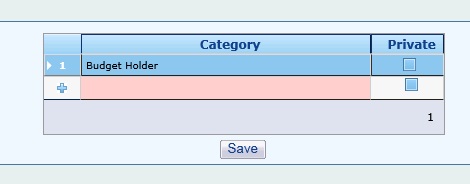
Ensure you have Budget Holder as a Category. If it is not there, add it.
-
This is achieved by typing the title in the highlighted field under the category heading. If you check the Private tick box this category will only be available to the user creating it.
-
Once you have added the category select Save and then select on the reports tab.
-
This takes you to the reports section.
-
Enter the Report Category, Title and Description in the pink row at the bottom of the page.

-
When you get to the Report Path box, there is a magnifying glass, which enables you to search for the Report. The Report Selector screen appears.
-
Expand the folder and select the report you want. You can add several reports to each category if necessary. Ticking the private box makes the report only visible to the user creating it.
Make sure you save each line before you move onto the next to ensure you don’t lose any of your work.
-
Once the report has been saved it is then available to run from within the myPortal homepage.