Add a delivery address in MyPortal
Each Academy location has a Delivery Address assigned to it which pulls through to the Purchase Orders as they are raised; as long as the Location is specified. You can find the delivery address of the Academy.
-
Go to Masters>Ledgers
-
Selecting the Academy Details Ledger and then select the desired Location.
-
Once the Location is highlighted, select Address to view the Delivery Address Details.
-
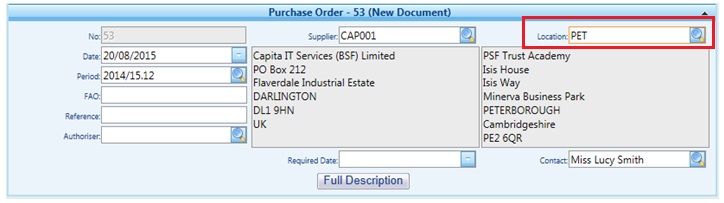
On the Purchase Order below, where PET is chosen as the Location, you can see the Delivery Address has pulled through.
-
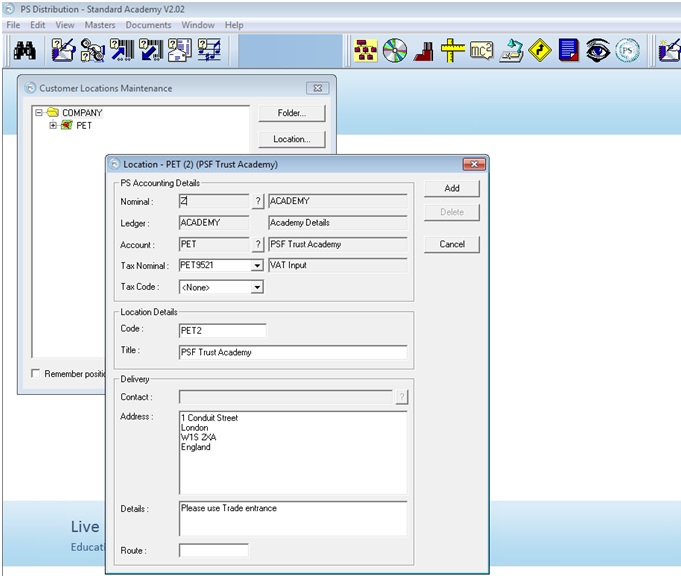
You can also see this Delivery Address in PS Distribution by going to Masters, then Customer Locations, select the Location in question and select Location.
-
To create a new Location, in the Customer Locations menu select COMPANY and then Location. A new Location box appears.
-
Complete the new Location tabs as follows.
Name Detail Nominal Displays Z as this is the Nominal for Company information. Ledger Automatically displays ACADEMY once the nominal is selected. Account Choose the Account that relates to the Location you wish to create a new Delivery Address for Tax Nominal Displays the VAT Input Nominal for that specific Location Tax Code Displays a default Tax Code, if this is not relevant, select None. Details Add any additional Details can be added as required -
Delivery Address Details assigned to the Account automatically pulled through. This means below the Delivery Address Details are exactly as they appear in the Academy Ledger for PET.
-
As this is a second Delivery Address for this Location, the User needs to amend the Code so that it is different from the Code used to identify the first Delivery Address. Then amend the Delivery Address to that of the second Location and select Add.
-
The User now sees the new Location has been added to the tree in the Customer Locations Maintenance menu.
-
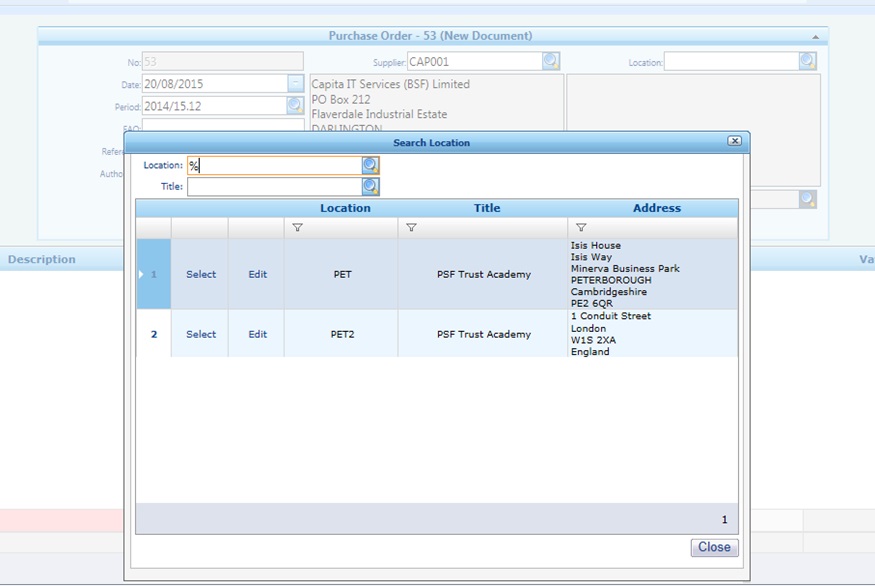
When a Purchase Order is next raised, the Users will see the new Location appears under the Search Location box.
-
When selected, the Delivery Address Details for the PET2 Location is pulled through to Purchase Order.