Run a system audit (v2 and v4)
From time to time you may find that you need to run an audit on the system to check the balances and accounts are all OK.
Normally this is done prior to running Year end or can be carried out as a monthly process.
BEFORE RUNNING AN AUDIT WITH CORRECT ERRORS AND AUTO CORRECTION SELECTED YOU WILL NEED TO ENSURE YOU HAVE A CURRENT USABLE SQL BACKUP OF THE DATABASE. This is essential due to the fact that if the audit finds any errors with allocations the system will undo the allocations where there is deemed to be a problem.
Depending on which version of the software you have, you may need to export a UDI to give a path to save to for the file created by the audit process.
To do this navigate to Masters > Document input forms then select any document and click Export, save this to either your desktop or a folder that you can save to.
Once you have done this navigate to Admin > Audit, a box similar to below will appear.
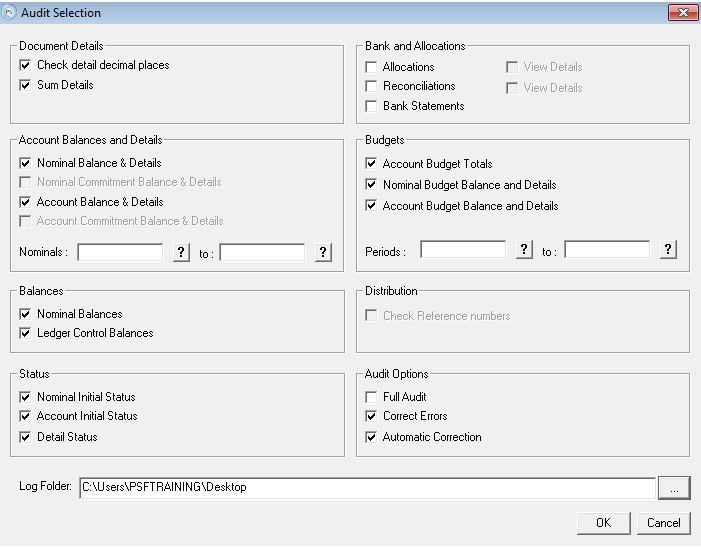
On a newer version of the software, like shown above, the section at the bottom allows you define the path for the log file. Click on the '...' in the right box and designate a folder for the file to save to.
The Audit should ideally be ran with selection criteria as shown above.
We strongly recommend you do not run it with anything ticked in the 'Bank and Allocations' box as you do not want the system to perform an audit on the Bank items and allocate/unallocate them of it's own judgement without user input.
In the event of errors being reported, that you are unsure how to resolve, please contact the support desk and send a copy of the audit log files (located in the specified location under the "Log Folder" field shown above). The audit log file will then be looked at by a member of the support team, and the relevant advice given.