Cancel direct debit transactions
Cancel/Reverse a direct debit posting
-
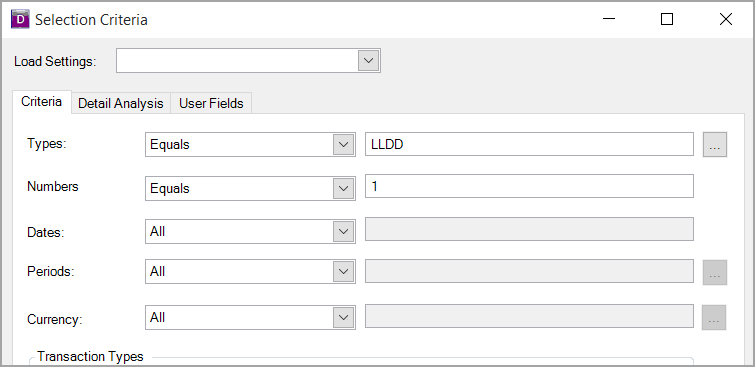
Go to Options > Document Enquiry and search for the direct debit document. The criteria below will search for Direct Debit document number 1 on LLL location.
-
Right-Click in the grey box with the drawing pin on the document header row.
-
Select Copy Document from the menu that appears.
-
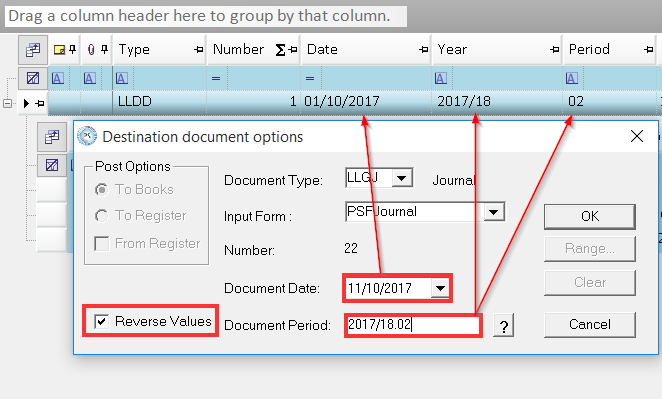
Select the Reverse Values checkbox.
-
Select the Journal document type for the same location as the direct debit document.
-
The Date field must be the same date as the original document.
-
The Period field should be the same date as the original document where possible. If the period is closed, then you would need to speak to your establishment/organisation to see if it is possible to re-open the period to allow the posting or select another period that is open. For more information of checking the status of a period, see Open and close accounting periods.
-
Click OK to open the document input form.
-
Providing the reverse values box has been ticked, the entries on the screen will be correct in order to reverse the document.
If there is a VAT line on the document, you should check the VAT period is open before posting as you will receive an error if it is closed. - Once complete hold SHIFT and F5 to post and allocate the Document. Alternatively click on Post(UDI) from the top menu and click on Post & Allocate. This will take you to the Supplier’s Account where the Direct Debit document you have just created will be highlighted in green.
- Click in the grey box against each line you wish to allocate with the direct debit payment and click the Confirm button.
The confirm button will only be available if all lines balance to zero. The nominal and account must be the same on all documents being allocated together. If they are not, the confirm button will not be available to select.