Enable the edit document function
CUSTADMIN access only
You can edit the content of requisitions or purchase orders that have not yet been authorised (goods received notes and invoices are read-only after posting). The edit function lets you change existing content but not add new items.
For purchase orders, an item line is read-only after it moves to a GRN (that is, if a partial delivery has been received).
To provide access to this functionality, assign two security roles to existing IRIS Financials Purchasing users.
Setting up the security roles (if required)
You need to set up two security roles to give user groups access to the Edit function in IRIS Financials Purchasing: PSO_EDIT_REQ and PSO_EDIT_PO.
To check if the roles already exist in IRIS Financials:
- Select AdminModules, then select Administrator from the menu.
- The PSF Administration Logon dialog opens. Log in using your user name and password for IRIS Financials.
- The PSF Administration dialog opens. Select the PS Financials folder from the panel, then select the Roles tab.
- Find PSO_EDIT_REQ and PSO_EDIT_PO in the Role column.
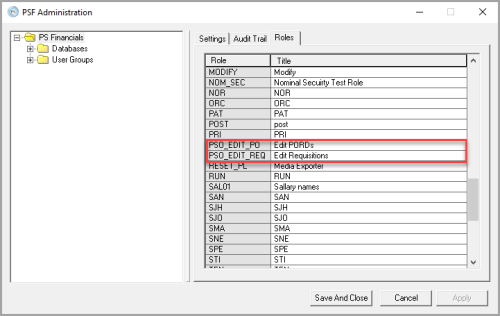
- If they do not exist, find the blank field in the list, select the blank field in Role then enter the code for the role for example, PSO_EDIT_REQ or PSO_EDIT_PO, then select in the blank field in Title and enter the title details (as displayed in this graphic). Select Apply to save the changes. If they details already exist, you can apply the security roles to the user group, as described in the following section.
Applying the security roles to user groups
To give a user group access to edit requisitions or purchase orders, apply the security roles to the applicable user groups.
- From the PSF Administration dialog, select Expand (+) adjacent to the Databases folder.
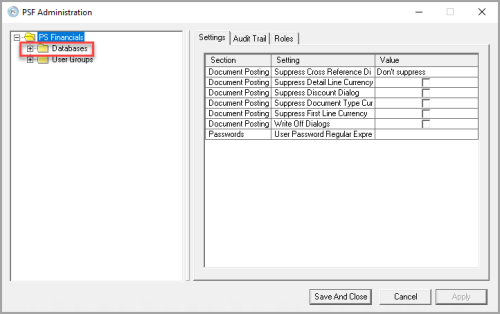
- Select to select the required database
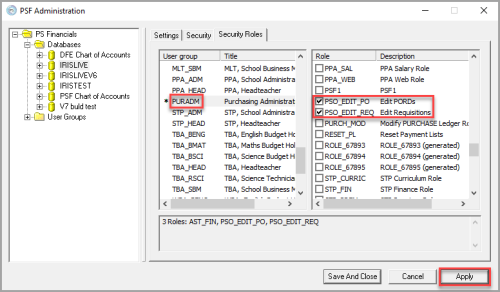
- Select the user group you want to apply the security roles to from the user group list in the panel.
- Find and select PSO_EDIT_REQ and / or PSO_EDIT_PO from the Role column in the panel to allow access to edit documents in IRIS Purchasing for each document type.
- Select Apply to save your changes.
Assigning the applicable authorisation status settings in IRIS Financials Purchasing
Check that you have set up the Authorisation Statuses for the Edit function.
You should need to complete this step only once. If other users already have access to edit, then you do not need to follow this step.
To assign authorisation is IRIS Purchasing:
- From the Home page, select Settings.
- The Purchase Settings panel opens, consisting of various tabs used to apply relevant settings. Select the Authorisation tab.
- Make sure you set Requisition (REQ) to Requisition Authorised and Purchase Order (PORD) to Purchase Order Authorisations, as the earlier graphic shows. If you set either status differently, select the list arrow and select the required option from the list.