Setting Up IRIS Expenses Claim Approvers for IRIS Financials 7
For IRIS Expenses claims submitted to be posted to IRIS Financials for payment, you need to assign approvers who can determine if a claim for expenses is accepted, declined (sent back), or rejected.
You can set up approvers to directly approve all claims made by a single user or you can set for multiple approvers to approve the claim before it can be posted for payment. You can also set up approvers to approve claims by the account to which they are to be posted rather than by a user.
IRIS Expenses Approvers are assigned within IRIS Financials. It depends on how IRIS Expenses has been set up for your establishment/organisation at installation as to which ledgers the approvers are assigned against.
If you are unable to access IRIS Financials and the required ledgers to set up an approver for IRIS Expenses or are unsure how the system has been set up to determine which ledgers are used to assign approvers, please contact the person within your establishment/organisation who administers your system, i.e., has a CUSTADMIN login.
Selecting the Approver Type
- In IRIS Financials, click Maintenance, then select Accounts from the menu.
- Double-click to select PARAMETERS - Parameters Ledger from the Select a ledger dialog.
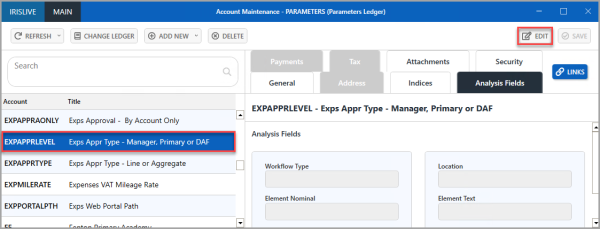
- The Account Maintenance window is displayed. Select EXPAPPRLEVEL - Exps Appr Type - Manager, Primary or DAF from the left-hand panel, select the Analysis Fields tab, then click EDIT.
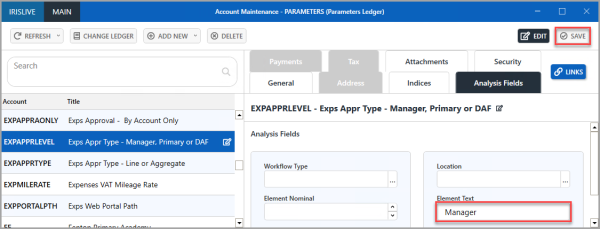
- Enter the the type of approver you want to set in Value for Element Text. Enter one of the following options:
Manager - if you want to assign approvers to approve all claims for individual users in the Users Ledger.
Primary or DAF - if you want to assign approvers to approve claims for specific cost centres expenses in the Cost Centre Ledger for your establishment/organisation location or if you want to set more than one approver for the expense documents. - Click SAVE to confirm the changes.
- An Update complete message is displayed. Click OK to close the message and return to the previous window.

Setting a User as an IRIS Expenses Approver
Depending on the Value entered when you selected the approver type, you either need to assign the user as the approver in the Users Ledger or the Cost Centre Ledger.
Assigning an Approver to a User
- In IRIS Financials, click Maintenance, then select Accounts from the menu.
- Double-click to select USERS - PSF Users Ledger from the Select a ledger dialog.
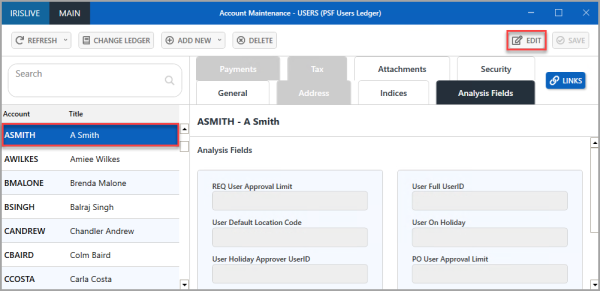
- The Account Maintenance window is displayed. Select the user for which you want to assign an approver for expenses from the left-hand panel, e.g. ASMITH - A Smith, select the Analysis Fields tab, then click EDIT.
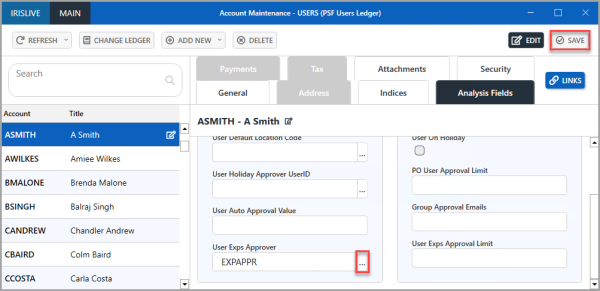
- Click Drill (...) in User Exps Approver, then double-click to select the user who you want to approve the users claims from the Select USERS account dialog.
- When you have assigned the approver, click SAVE.
- An Update complete message is displayed. Click OK to close the message and return to the previous window.
Assigning an Approver to a Cost Centre
When assigning an approver to an account you have two options.
- Single – Expenses are authorised by individual approvers with applicable authorisation limits. For example, if the first approver has an authorisation limit of £500 and the expense is above this limit, then authorisation is sought directly from the second approver (bypassing the first).
- Tiered – Orders are authorised by each approver up to, and including the approver with the correct authorisation limit. For example, if the first approver has an authorisation limit of £500 and the expense is above this limit, then approval is sought initially from the first approver and then sent to the second approver for authorisation.
- In IRIS Financials, click Maintenance, then select Accounts from the menu.
- Double-click to select AST_COSTCTR - AST Cost Centre Accounts (where AST represents the location code for the account) from the Select a ledger dialog.
- The Account Maintenance window is displayed. Select the user for which you want to assign an approver for expenses from the left-hand panel, e.g. ACCOUNTING - Trading Account, select the Analysis Fields tab, then click EDIT.
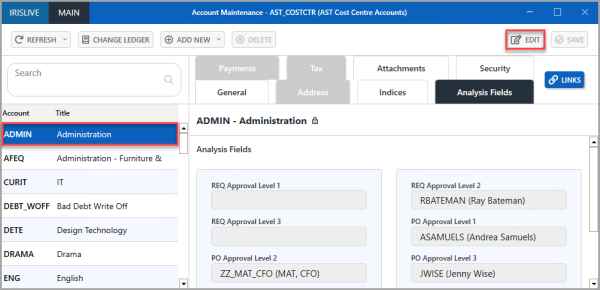
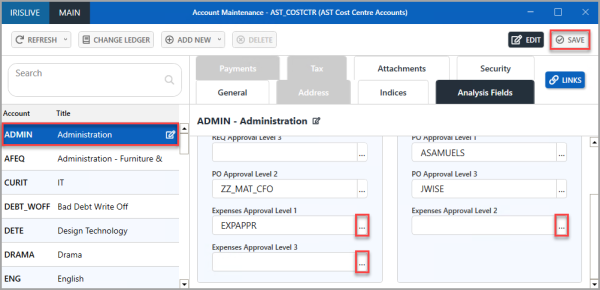
- Select the user who you want to approve the claims for the account type from the the Expenses Approval Level 1 drop-down list.
If you want the expenses document to be approved by more than one approver, select the required user from the Expenses Approval Level 2 and Expenses Approval Level 3 drop-down lists. - When you have assigned the required approver(s), click SAVE.
- An Update complete message is displayed. Click OK to close the message and return to the previous window.
- Next, you need to set the approval limits for the approvers you have set for each level on the Users ledger. In IRIS Financials, click Maintenance, then select Accounts from the menu.
- Double-click to select USERS - PSF Users Ledger from the Select a ledger dialog.
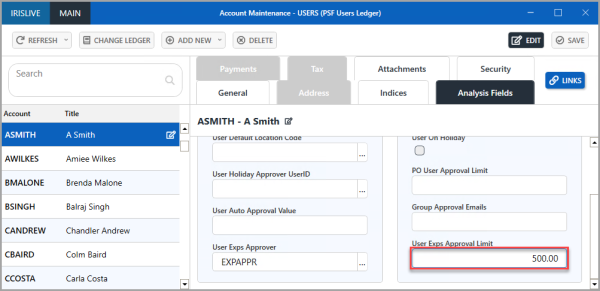
- The Account Maintenance window is displayed. Select the user who you have assigned as an approver for expenses against the cost centre from the left-hand panel, e.g. ASMITH - A Smith, select the Analysis Fields tab, then click EDIT.
- Enter the amount you want to set as the user's approval limit in User Exps Approval Limit, e.g 500.00 (do not enter any currency symbols, i.e., £, $, etc.)
- When you have assigned the approver, click SAVE.
- An Update complete message is displayed. Click OK to close the message and return to the previous window.