Create Pre Order Menus
The Pre-order section of FasTrak Admin is used to set pre-order menus, which can be set for up to 5 weeks in advance.
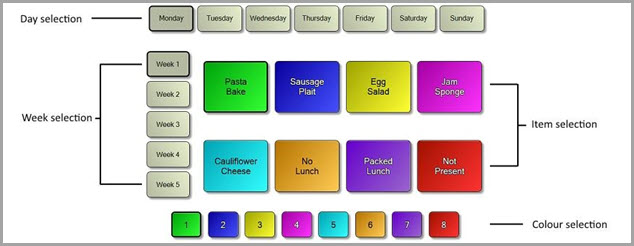
Setting a pre-order menu
- Select the desired Day and Week from the day selection and week selection.
- From the table at the side of the pre-order window, select Choose Product or Choose Meal Deal and then select the product or meal deal that you want to include in the pre-order menu.
- Choose an item selection button to apply the chosen product or meal deal to, and then select Product Set from the toolbar.
- To change the colour of an item selection button, select one of the numbered colour selection buttons, and then select Product Set from the toolbar.
Enabling/disabling a pre-order button

If you want to hide an item selection button in FasTrak Client (e.g. if one of the buttons is unused), select the item selection button and then select Product On/Off. A cross (X) will appear on buttons that you mark as hidden.
Saving your changes

Select Save Changes to save the pre-order menu, otherwise you will be prompted to save changes when you leave the Pre-order view.
Changing today’s menu

If you want to set the current display on the pre-order view as today's menu, select Set Today's Menu from the toolbar.

To load the menu set for today, select Get Today's Menu from the toolbar.
The current day's menu can also be set via the end of day process.