Create Meal Deals
Meal deals are groups of products that you can create, allowing people to purchase a group of items at a discounted price. You can add up to 5 choices per meal deal (e.g. main meals, desserts, drinks), each comprising of either a single product or multiple products.
Adding a Meal Deal
To add a new meal deal, go to the Meal Deals section and select Add Meal Deal from the toolbar. The following window will appear:
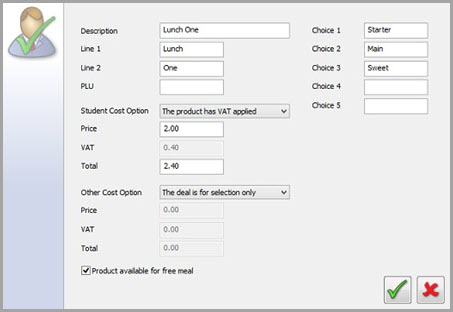
Meal Deal Options
Description — Enter a name to identify the meal deal.
Line 1/ Line 2 — When you add meal deals to the till display, these two lines are displayed on the associated till button. Only Line 1 is required.
PLU — Enter the price look-up code, if required.
Student Cost Option — Choose whether the meal deal is for selection only, and if it has VAT applied.
This option only applies to students.
-
Price — Enter the price that you want to charge for the meal deal.
-
VAT — The VAT is automatically calculated. You can edit this in FasTrak Admin's Maintenance section or remove it as required. The value entered here will be added to the price you set for the product.
-
Total — The total price of the meal deal including VAT if applied.
Other Cost Option — Set the price of the meal deal for non-students, e.g. staff members. You can use the same price as set for students, or set a different price as needed.
Choices — Choice 'titles' for products added to the meal deal to be grouped under, e.g. Main meals, desserts, drinks.
Product available for free meal — If you want the product to be available to people qualifying for free school meals, tick this option (enabled by default).
Editing a Meal Deal

To edit a meal deal, select it from the meal deal list and then select Edit Meal Deal from the toolbar. You can edit all options as needed.
Deleting a Meal Deal

To delete a meal deal, select it from the meal deal list and then select Delete Meal Deal from the toolbar. You will be prompted to confirm that you want to delete the meal deal.
Adding Products to Meal Deals

To add a product to a meal deal, follow these steps:
- Select the meal deal choice that you want the product to appear under.
- Select the product you want to add from the product list at the side of the window, and select Add Product from the toolbar.
- The product will appear under the selected choice in the meal deal.
If you want to remove a product from a meal deal, select it from the choice column and then select Remove Product from the toolbar.
You can change the order that products appear in by selecting Move Up / Move Down. Products higher up the choice list will appear first.
Saving Meal Deal Changes

Select Save Changes to save the meal deal, otherwise you will be prompted to save when you leave the meal deal view.
If using this on a till you will need to make sure the meal deal is enabled. To do this you will need to go to the till layout screen in FasTrak Admin and choose the Category Edit option for the category screen with these products in. In here you will see an option to enable the meal deal you have just created. Once you have ticked this box make sure you click Save Changes and then update the till.