Configure Password Settings
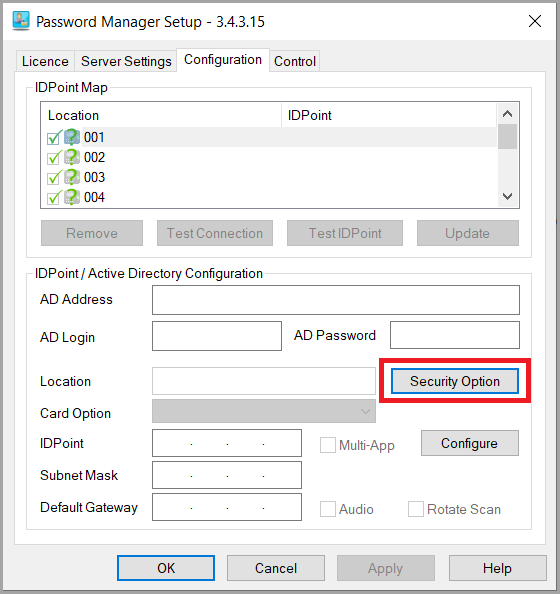
It is possible to configure what passwords are reset to, you are able to set this within the IDPassword / Password Manager Setup > Configuration > Security Option shown below, this program can be found installed on your school's server:
Under the Security Options, you are able to pick between 4 options
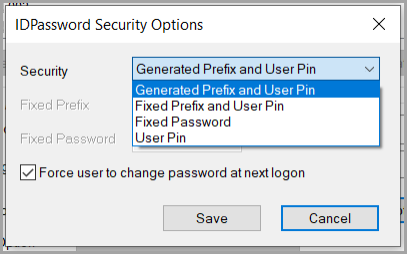
Generate Prefix and User Pin — This option will generate a random 4-digit prefix, and the user is required to enter a 4-digit PIN of their choosing. The user's password will be changed to the prefix and PIN combined, e.g. word1234.
Fixed Prefix and User Pin — Select this option if you want to set your own fixed prefix instead of it being randomly generated. Enter your choice of prefix in the Fixed Prefix box. The user will still need to enter a 4-digit PIN of their choosing after the prefix.
Fixed Password — If you want user passwords to be reset to a fixed value, select this option. Enter the password you want to use in the Fixed Password box. When a user tries to reset their password, it will be automatically changed to the entered value, e.g. password. No extra PIN is required with this option.
User Pin — Selecting this option will remove the requirement for a password prefix, and just require the user to enter a 4-digit PIN of their choosing, e.g. 1234.
Click Save to save any changes, or Cancel to disregard any changes. The IDPassword service must be restarted before any changes will come into effect.
Force user to change password at next logon — If this option is ticked (strongly recommended), users will be required to change their password when they log on with the password set using an IDPoint. If unticked, the user will be able to continue using the password set using an IDPoint. Note that it is recommended to leave this option ticked for security purposes.