Batch receipts
This screen makes provision for a batch of different purchase invoices on the same screen. This may include multiple line item invoices or single item invoices.
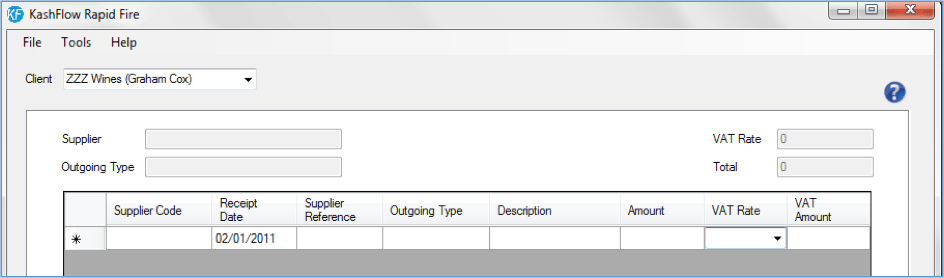
Setting the invoice details
Supplier Code – select the correct supplier code from the drop-down list. If the supplier does not yet exist there is provision for a new record to be created in the fly.
Receipt Date - enter the date of the Purchase Receipt.
Supplier Reference - enter the Purchase Receipt Number.
Outgoing Type - enter the correct outgoing type or select from the list.
Description - enter some narrative to describe the item.
Amount - enter the net value of the individual item.
VAT Rate - enter the net value of the individual item.
VAT Amount - enter the applicable VAT for the item or select from the list.
Repeat the above for additional line items or separate Purchase Receipts to be entered in this batch.
Keyboard Shortcuts
To assist further with speeding up data entry for a batch of sales invoices three are several shortcut keys provided:
F6 Key - copies the value from the field above (useful if entering several items from the same receipt where the supplier, date and purchase receipt number are the same).
A multi line item with the same Supplier Code, Date and Customer reference will be treated as a single receipt once uploaded in to IRIS KashFlow.
F7 Key - inserts a blank line in to the batch for an additional item to be added.
F8 Key - deletes a line from the batch.
Finalising the batch
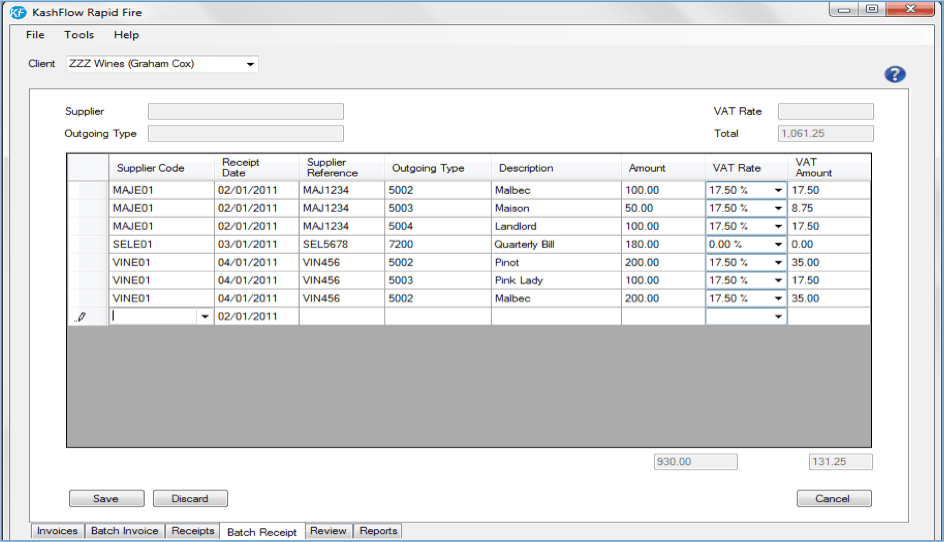
The batch will then be listed:

This batch can be reopened for editing with a double-click.
If you wish to delete a saved batch from IRIS KashFlow RapidFire use the Discard button. A warning will display to confirm you are happy to proceed with the deletion.
Cancel will close a saved batch without saving any changes.